Account, plan, team, the list of environments, the app catalog. You manage here; you do not work with data here.
User guide
BusinessOS: from sign-up to a working app
How to get an environment, build an app in words or install a ready one, invite your team and connect your own domain and sign-in. With an honest list of what is still missing.
What you get
The platform has two parts, and they live at different addresses.
Cabinetbos.virtuman.com
Environment<name>.bos.virtuman.com
Your own server: URL, database, console, AI assistant. Apps and data live here.
Appinside an environment
Objects, screens, dashboards. Built by AI from a description, installed from the catalog, or built by hand in Studio.
One account — one production environment. Development environments come with the «Команда» (Team) plan and up. An environment can hold any number of apps.
Sign up and sign in
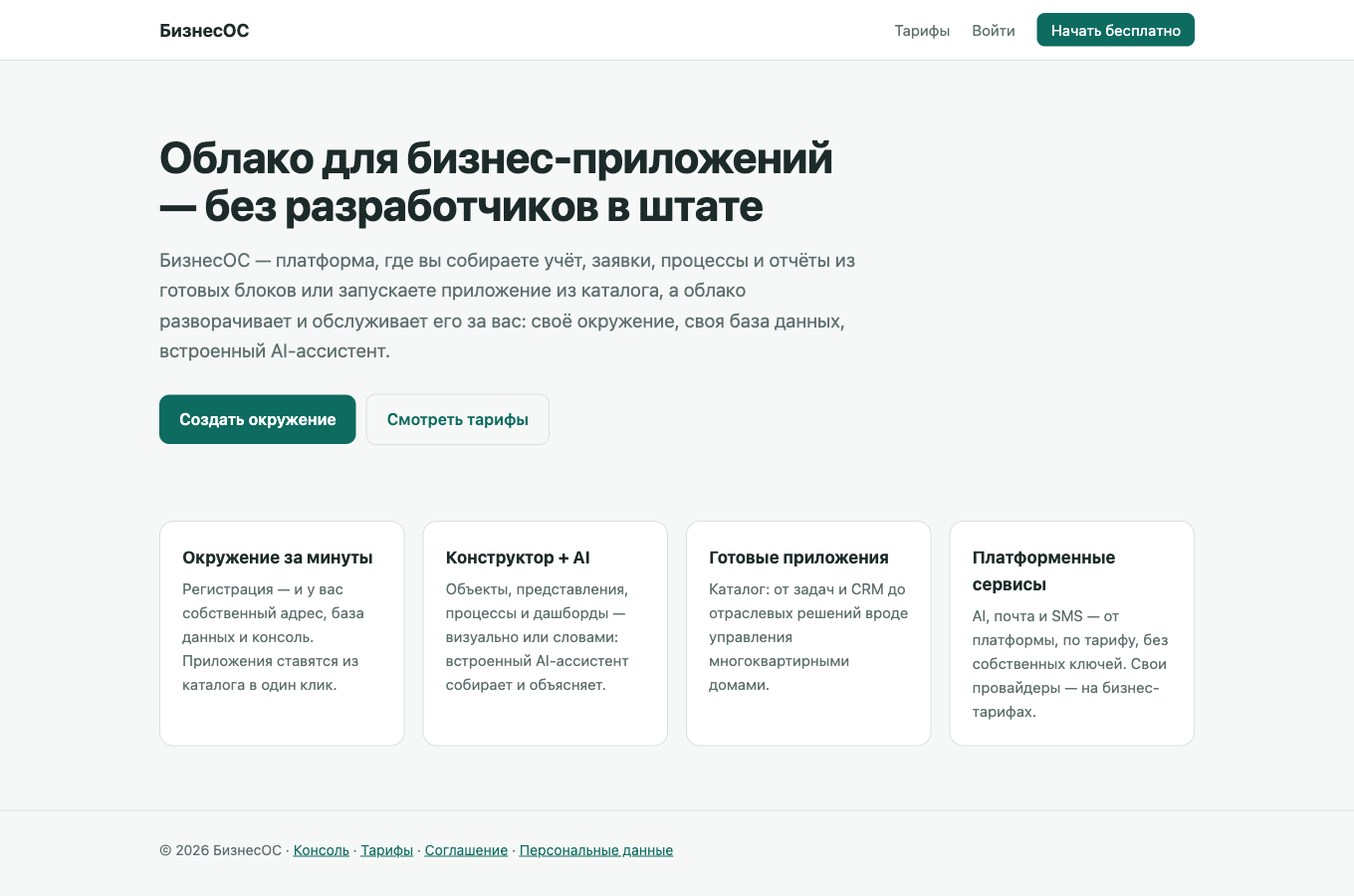
- Open
bos.virtuman.com/signupEnter your name, email, password and organisation name. The organisation is your account: plan, team and environments hang off it. - Sign in to the cabinetAfter sign-up you land in the cabinet console as the account owner. The default plan is «Старт», free.
- By invitationIf a colleague sent you a link like
/invite/…, open it — you join their account as a member instead of creating a new one.
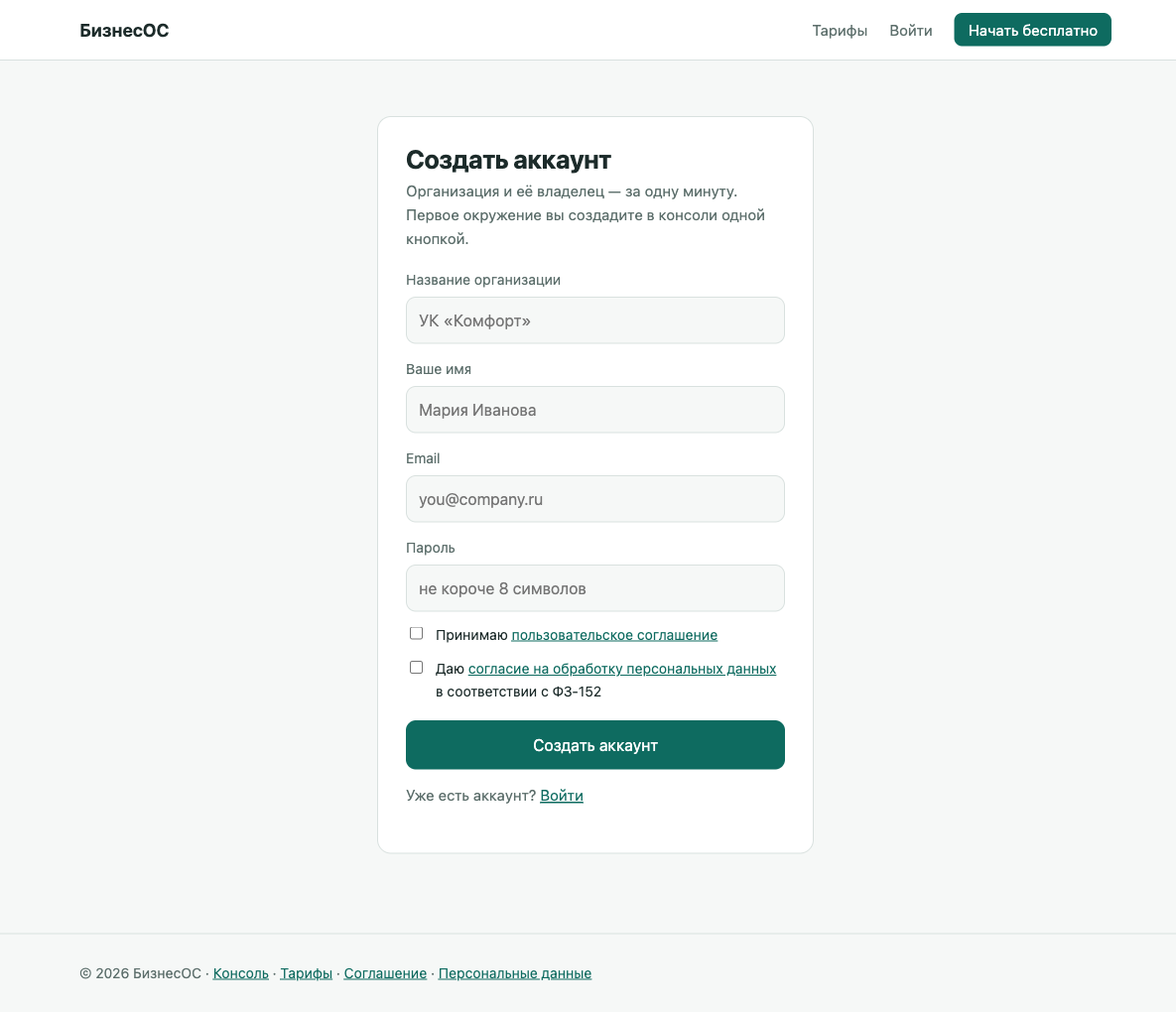
Not quite right yet
The console speaks Russian, but Setup inside an environment is not fully translated yet — #33/#37. Social sign-in buttons appear on the sign-in screen only once the operator has enabled social sign-in in the settings.
Step 1. Create an environment
The cabinet home page has a three-step «Как начать» block and the Создать окружение (Create environment) button. If you signed in through an external service (VK, Yandex, …), the first action asks you once to accept the terms and the personal-data consent — the /consent page.
Once an environment is running (or has an app installed), the home page turns into a dashboard: environments with their storage and installed apps, the plan with storage and monthly AI bars, the team, and three steps — environment running, first app, a teammate — that tick themselves.
- Click «Настройте продакшн-окружение» (Set up your production environment)Enter just a name — the address is assigned automatically. An account's first environment is production; further ones («Добавить окружение разработки», add a development environment) are development environments, and how many depends on the plan. The plan is changed on the «Тариф» page; apps are installed from the catalog once the environment exists.
- Wait 2–3 minutesStatus moves
provisioning → active. The platform creates a separate server with a database at<name>.bos.virtuman.com. When it is ready, the account's contact address receives an email with the URL and how to sign in; emails also arrive on a failure and on an inactivity auto-archive. - If the status is
failedOpen the environment record — the reason is shown in a red banner at the top. «Развернуть заново» (Redeploy) retries; if that does not help, write to the operator.
Cabinet home page screen layout
Создать окружение Открыть продакшн Сменить тариф
Step 1
Create an environment
Create an environment
Step 2
Build your first app with AI
Открыть продакшн и собрать
Build your first app with AI
Открыть продакшн и собрать
Step 3
Invite your team
Invite your team
Окружения
Мои приложения
Тариф
Команда
Step 2. Open production
«Открыть» (Open) on the environment's row or record (menu Окружения, Environments) opens your environment in a new tab without a second sign-in: the environment signs you in with your BusinessOS account, like a «Sign in with…» button: the cabinet confirms you are a member of the account. The account owner enters as owner, members as members; on first entry the environment creates their user itself.

Good to know
Inside the environment is the same console as the cabinet, but with your apps, the AI panel («ИИ-конструктор», the builder, and «ИИ-помощник», the assistant), the catalog and Studio for manual authoring.
Step 3. Build an app
With AI
- Open the AI panel, pick «ИИ-конструктор» (the builder) and describe the taskFor example: «Repair requests: request, building, contractor, statuses new / in progress / closed, a board by status and a monthly summary». Write in your language — the reply comes back in it.
- Check the planThe AI shows a plan card: objects and their fields, screens, a dashboard, the assumptions it made, and answer buttons under each open question. Nothing is created yet. Change the plan in words or with «Скорректировать» (Adjust).
- Click «Собрать» (Build it)The app is built inside the environment: objects, lists, boards, an «Overview» dashboard. The «Заполнить примерами» (Fill with sample data) checkbox under the card's buttons adds demo records so the screens are not empty (you can delete them later); clear it and the app is built empty.
- Keep going in words«Add a due date to the request», «make a board by contractor» — edits apply as a batch and are checked against the live app. If the AI notices the plan duplicates an existing app, it asks: extend it or really create a separate one.
ИИ-помощник — questions to your data
«ИИ-помощник» (the assistant) in the same panel answers from the apps' data: «how many requests were closed this week», builds tables and charts. It never changes structure — it reads, and runs the actions the app allows.
Files and approvals
Attach a file to a question (the paperclip in the input): text, CSV, PDF, Excel, Word or a photo — the assistant reads it. The assistant only proposes data changes: the card shows «field: before → after», and the change runs after «Согласовать и выполнить» (Approve & Execute) — or ⌘/Ctrl+Enter while the card has focus; in «Входящие → Действия ИИ» (Inbox → AI actions) the button is «Согласовать» (Approve). «Исправить с ИИ» (Fix with AI) rejects the proposal and starts a request in the input — finish it with what to change; on a change that failed, the same button hands the error to the AI. If the record changed in the meantime, the card warns you and the approval is refused.
AI in flows
The flow editor has an AI Agent step (ai_agent): for example, on every new request — «decide the category and urgency». The step works as the person who created or changed the record, does not hold up the save, and hands the flow text and, with a schema, data ({ai.data.category}) — an ordinary «Update record» step writes it. Changes the agent wants to make itself arrive as proposals in «Inbox → AI actions». A flow with no user (run by the system) does not call the agent.
Classification in flows
The AI Classify step (ai_classify) is simpler and cheaper than the agent: text from the record's fields, a list of labels (say “leak”, “noise”, “cleaning”) and/or a data schema to extract. One model call returns {kind.label}, {kind.confidence} and {kind.data} — a regular Decision step branches on the confidence. Both steps take a model (a fast one for triage, a strong one for drafts) and a retry on transient failures. A server restart mid-step is survived: the work runs again.
Environment agents
In Setup → AI agents an agent has a “Model” and “Starter suggestions” — sample questions in an empty chat. The agent knows who is asking: name, position, organization and your local time (“my tickets”, “today before 6 pm” are read correctly). Administrators find “Agents overview” in the agent picker (⌘L): every agent in the environment, its model, skills and what each one may change.
Conversations and the knowledge base
Conversations in the AI panel open as tabs: «+» starts a new one, a tab can be renamed and closed, recent ones are in a list; each agent keeps its own. In Setup → «База знаний» (Knowledge base) an administrator adds documents — an article typed in or a file (PDF, Word, Excel, text, up to 25 MB); the AI answers from them, and everyone sees in answers only what they may read.
From the catalog
The Установить приложение (Install app) button in the cabinet — or the catalog inside the environment — installs a ready app: choose the environment and the package. Installed apps appear in the «Установленные приложения» tab of the environment record, with «Последняя версия» (latest version) — the latest published one; when it is newer than the installed version, «Обновить» (Update) appears: it opens the app in the environment's catalog, where the update runs. «Версия в окружении» (version in environment) is what the environment reported about itself at its last check (every six hours); if it differs from «Версия», the app was updated outside the cabinet or has not been updated yet. To remove an app, uninstall it in the environment's catalog — the environment tells the cabinet itself, and the app leaves «Установленные приложения». Installing it again brings the same entry back.
Drafts and publishing
By default the AI builds in draft mode: the structure is saved but not shown to users yet. A Publish banner appears in the console — press it when you are happy. That is the preview: you see the draft in Studio, others do not. On «Бизнес» and «Энтерпрайз» (plans with app publishing) AI builds are published at once, with no draft.
Limitation
There is no separate «preview environment» — use a «Разработка» (development) environment for experiments («Команда» plan and up). Deleting an app removes its structure, but its data tables stay in the database until the operator cleans them.
Team and seats
The Команда (Team) menu item is your organisation record: tabs «Участники», «Приглашения», «Команды»; actions «Пригласить пользователя» (invite), «Добавить участника» (add member), «Переименовать организацию» (rename).
- Invitation — by email. The invitee enters the cabinet and all your environments as a member.
- AI seat — a toggle on the Тариф page → «AI-места участников» (members' AI seats). Only seat holders can use the builder and the assistant; on «Команда» and «Бизнес» you pay per seat, members without AI are free. While the organization has no AI seat at all, the owner gets one automatically.
- Limits — the plan sets the number of members and seats; over the limit an invitation is refused with a clear reason.
Invitations
The invitation link /invite/… is shown in the cabinet — you can also pass it to your colleague directly if the email is delayed.
The environment record
Окружения → pick an environment. Status, URL, plan and buttons at the top; tabs below.
Environment record screen layout
Production · active · production · admin-1c7b.bos.virtuman.com
ОткрытьЖурналМетрикиСоздать копию сейчасСделать основнымПереименоватьСменить поддоменВход в окружениеКто может регистрироватьсяДоступ AI-агентовПриостановитьАрхивировать
ОткрытьЖурналМетрикиСоздать копию сейчасСделать основнымПереименоватьСменить поддоменВход в окружениеКто может регистрироватьсяДоступ AI-агентовПриостановитьАрхивировать
ДоменыУстановленные приложенияВход компанииРезервные копииПотреблениеНастройки
Domains table · Добавить домен| Action | What it does | Reversible? |
|---|---|---|
| Открыть (Open) | Password-less entry into the environment, new tab | — |
| Журнал (Log) | The environment log in a new tab (also in the list row's «⋮»): application and database pods with restarts and their reason, the previous run of a crashed container, a tail from 200 lines loading back up to 5000, new lines streamed live, a filter, and an «События» (Events) tab with Kubernetes events in words. Secrets in lines are masked | — |
| Метрики (Metrics) | The environment's charts in a new tab: AI tokens per day and by kind of work, emails per day, storage, CPU and memory per hour, disk per day (30 days of history) | — |
| Сделать основным (Make default) | This environment becomes the target of «Открыть продакшн» | yes |
| Переименовать / Сменить поддомен | Name; subdomain (the old address stops working) | yes, but links to the old address break |
| Приостановить / Восстановить | Stops the server, data stays; the environment address shows a «paused» page; resume takes a minute | yes |
| Архивировать (Archive) | Stops the environment like suspend and frees its slot in the plan limit | yes («Восстановить») |
| Удалить (Delete) | Shown on an archived environment. Deletes the server, database and files | no — the operator keeps a nightly database copy for 14 days |
| Обновить (Update) | Shows in the list row when a new platform version is out for the environment (the row is tinted blue, the version is in «Доступно обновление»). Asks for confirmation and moves the environment to it; it is unavailable for a few minutes, data is kept | — |
| Развернуть заново (Redeploy) | Retries after a failure or updates to the current platform version; data is kept | — |
| Откатить на рабочую версию (Roll back) | Redeploys the environment on the platform version it last ran on; data is kept | yes |
Frozen by the operator
The operator can freeze an environment (for example, for non-payment). You see the reason on the environment record, in an email and on the environment's page; while frozen it cannot be started, redeployed or moved to another address. Only the operator can unfreeze it.
Domains
«Команда» plan and up. «Домены» tab → Добавить домен (e.g. crm.example.ru) → the domain record shows the DNS records to create → Проверить (Verify) → after verification the certificate is issued automatically → Сделать основным if the environment should open at this address. «Отключить» removes the domain.
Company sign-in (SSO)
«Бизнес» plan and up. Employees sign in to the environment through your corporate provider (Yandex ID for Business, Keycloak, Okta, Entra, any OIDC/SAML).
- «Вход компании» tab → «Подключить вход компании»Enter the employees' email domain (
example.ru), the kind (OIDC or SAML) and the provider details: for OIDC — issuer, client ID and secret; for SAML — SSO URL and the IdP certificate. - Register the addresses with your providerAfter saving, the record shows the redirect URI / ACS URL and the metadata address — enter them in your IdP.
- Verify the domainCreate the TXT record from the record and press «Проверить». The status becomes
active; on error the reason is shown next to it.
One email domain — one provider. An employee signing in for the first time gets the environment's «member» rights (the set is chosen in «Кто может регистрироваться»). Groups and departments from the provider are not carried over — roles are assigned inside the environment.
Who may sign in to the environment
- Вход в окружение — «via the cloud or local login» (default) or «only via the cloud / SSO»: the local password form closes; entry from the cabinet, company sign-in and social providers remain.
- Кто может регистрироваться — by invitation only, by email domain (list), or open; and which permission set a self-registered user gets.
- Доступ AI-агентов — allow external AI tools (Claude, Cursor) to connect to the environment over MCP.
Backups
The «Резервные копии» (Backups) tab of the environment record. A backup is the environment's database and files (attachments, sources of built apps) together. One is taken by itself every day and kept 14 days; status, size and kept-until show on the backup's row.
- Back up now — a button in the header of a running environment's record (e.g. before a large change). Takes a few minutes; the environment keeps running. One backup at a time.
- Restore to a new environment — on a ready backup's row. A new development environment appears with the database and files as of the backup; the original is not changed. The new environment counts against the plan; delete what you no longer need.
The organization's owner and admins can take and restore backups. Backups are taken for environments in the cloud; if an environment has already been deleted, its backup can be restored within 14 days through the operator.
My apps and publishing
Мои приложения (My apps) lists the apps you published from environments. While empty, it says where the first one comes from.
- Environment record → «Опубликовать в реестр»Enter a package id (reverse domain, e.g.
ru.example.crm), a version (semver) and a name. The environment exports the app as a package. - The app is available to your account at onceIt is private: only you see it, and you can install it into your environments with «Установить приложение».
- To show it to every customer — «Опубликовать в каталоге» (List in the catalog) on the app in «Мои приложения». An operator reviews the request; you get an email and a console notice with the decision. If the listing is not approved, the app card shows the operator's comment: address it, publish a new version and send the request again.
Publishing is a «Бизнес» plan feature; the number of private apps is limited by the plan.
Plan and usage
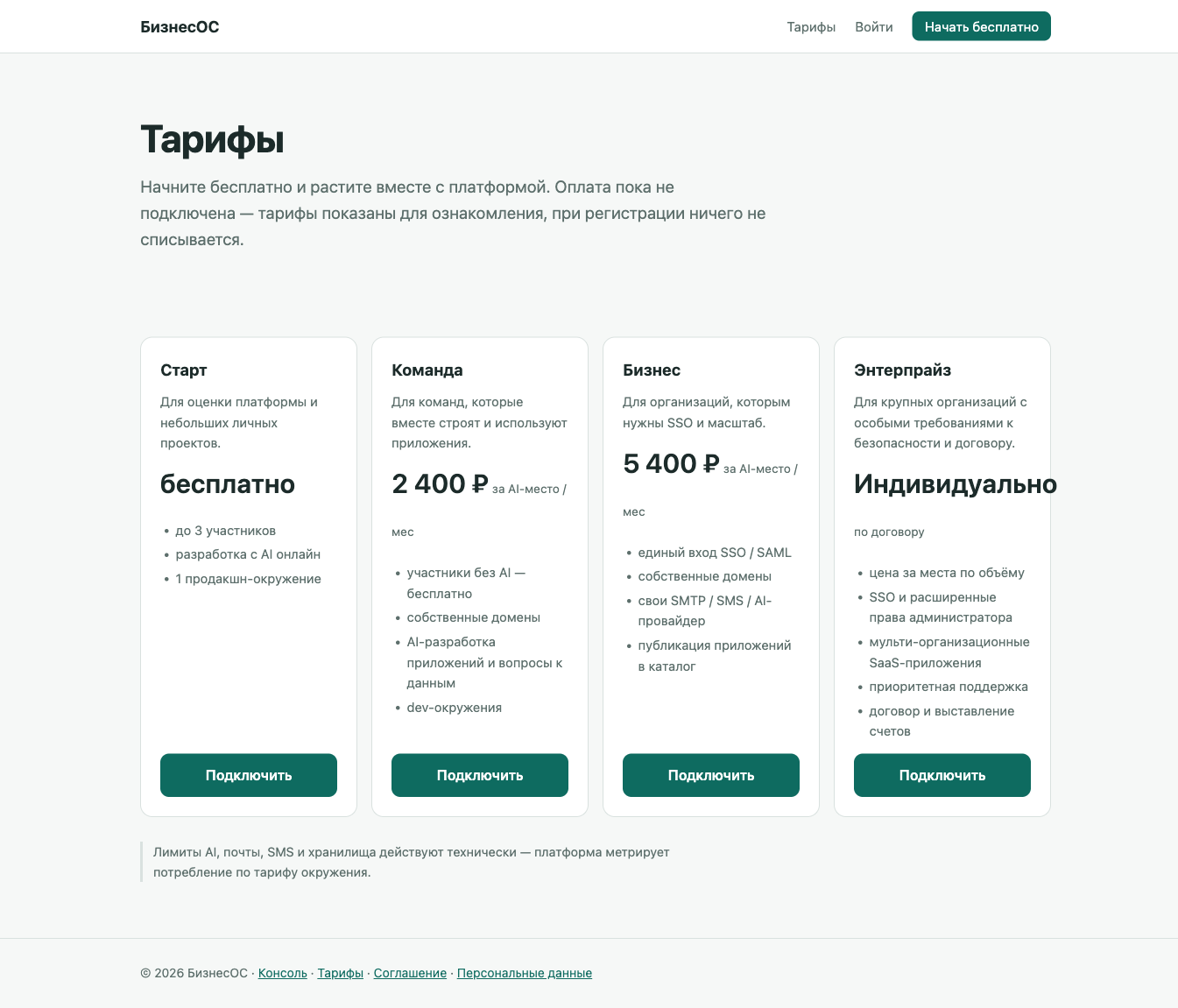
The Тариф page shows limits and how much is used: environments, members, AI seats, AI tokens this month (Build and Ask separately). The «Потребление» tab of the environment record shows one environment by day, plus its CPU/memory/disk sample.
Сменить тариф (Change plan) is a request to the operator, who confirms it by hand; the new limits then apply and you receive a «plan changed» email and a bell notification. A plan chosen at registration is the same request. There is no card payment yet — this is early access and the service is free (see the terms).
Your own server and air-gapped installations
BusinessOS runs in one of three modes — you choose which. Where your 1C lives does not decide it: a 1C reachable from the internet is simply an endpoint the cloud environment calls (open it only to the platform's addresses).
- Cloud
- The default: the environment lives with us; updates and backups are ours.
- Own server, connected
- A server in your infrastructure linked to the cloud: it receives catalog apps and your plan. The link is outbound HTTPS from the server only — no inbound connections. Enterprise plan.
- Air-gapped
- A server with no internet. It runs on a licence file from the cabinet; apps are installed from files. Enterprise plan.
Connect a server. Start it with OS_CLOUD_URL=https://bos.virtuman.com, open Setup → Cloud Connection and press Connect. The server shows a code — confirm it in the cabinet (it opens by itself) while signed in to your account. The server then appears in the cabinet under Advanced → Connected servers and renews its licence itself (every 6 hours, valid 30 days). The «На связи» (Online) column reads «Yes» while the server checked in less than 36 hours ago.
Air-gapped installation. In Connected servers press «Issue offline licence», give a name and a term, then «Download licence» on the server's row. Put the file next to the server and point OS_BOS_LICENSE_FILE at it. Renew with a new licence before the term ends.
When a licence expires the server has 14 days of grace; after that paid features switch off, but your data stays accessible. «Disconnect» in the cabinet cuts the server's link to the cloud; an air-gapped server keeps running until its licence expires.
Your data
- Where it lives
- In your environment's own database on the platform's servers in Russia. Files — on the environment's own disk.
- Backups
- The environment's database and files are copied daily and with «Back up now»; copies are kept 14 days. You restore them yourself, into a new environment (Backups).
- How long
- As long as the environment exists. Suspend and archive do not touch data. «Удалить» erases everything except the 14-day database copy.
- Export
- An app exports as a package («Опубликовать в реестр»); data through the environment's API/CLI.
- AI and keys
- AI requests go through the platform gateway and count against your token limit; you need no provider keys. Your own provider — on the «Бизнес» plan.
What is not there yet
| Capability | State | Ticket |
|---|---|---|
| Email and SMS from the platform | email works environments send mail through the platform (apps, notifications), and emails count against the plan limit; SMS comes later | #58 |
| Card payment and invoices | no plan changes go through the operator | #33 |
| Automatic sync of employees and groups (SCIM) | no SSO sign-in works, groups are not carried over | #59 |
| Russian console and Setup inside the environment | partly site, cabinet and console are Russian; Setup is not fully translated | #33, #37 |
| Environment load (CPU, memory, disk) | partly sampled every 5 min — «Потребление» tab and 30-day «Метрики» charts; log via the «Журнал» button (live stream, filter, events); no load/error alerts and no search over old logs | #35 |
| Self-service restore from a backup | partly into a new environment — yes; over an existing one — through the operator for now | #141 |
| «Environment paused» page and auto-archive of idle development environments | yes a suspended environment shows a status page linking to its record; a development environment with no cabinet-visible activity for N days (threshold set by the operator) archives itself, «Восстановить» brings it back | #22 |
| AI conversation history after an environment restart | yes conversations and the approval queue live in the environment database (since 22.09; environments provisioned earlier get it on «Развернуть заново») | #64 |
| Cleanup of a deleted app's tables | no structure is removed, tables remain | — |
| Terms and privacy policy | draft the text is marked as to be replaced | — |
| Daily AI caps and a remaining-balance dial in the environment console | yes two dials in the environment console header — «Build» and «Ask» — with today's remainder and a midnight reset; the monthly limit and the «Тариф» page as before. No top-up (#33) | #54 |
When something is off
- Environment
failed— the reason is in the red banner of the record; «Развернуть заново». - «Открыть» leads to the record, not into the environment — the environment is not
active; check the status. - AI says «limit exhausted» — «Тариф» page: monthly tokens, or the member has no AI seat («AI-места участников»).
- Environment frozen — the reason is on the environment record; unfreezing is the operator's call.
- A domain does not verify — DNS takes up to an hour to propagate; the error text in the domain record names the missing record.
- Anything else — the platform operator: the address is in the «Контакты» section of the terms (
/terms).